Feature guide 5/12 · Updated November 14, 2026
Split the workspace and open panels separately
Split editing panels side by side or top and bottom, or move them to separate windows, to arrange the screen the way you like to work. The layout is recorded for each project and restored the next time you open it.
5.1 Resize the work areas by dragging the dividers
Drag the three-dot grip on a divider to change the size of the areas on either side. In the Plus layout, you can adjust the width of the left drawer (the sprite list and so on). In the Scratch layout, you can adjust the width of the code area against the stage side, and the height of the stage against the sprite list.
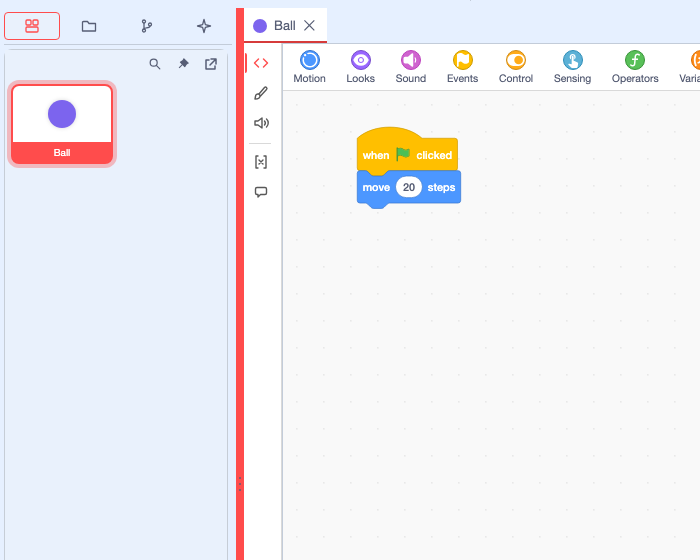
When a divider has focus, you can also adjust it with the arrow keys. Enter returns it to its initial position. Ratios adjusted in the Scratch layout are saved in the browser. If you reopen the editor with twPlusSplitter=0 added to the URL, the dividers covered in this section are removed. Even then, you can still resize the stage itself and split editing panels. Divider grips
5.2 Split panels side by side or top and bottom
From "Editor panel layout" at the top right of an editing panel, choose "Split right" or "Split below". Splitting right opens an editor for the same sprite on the right; splitting below opens it underneath.
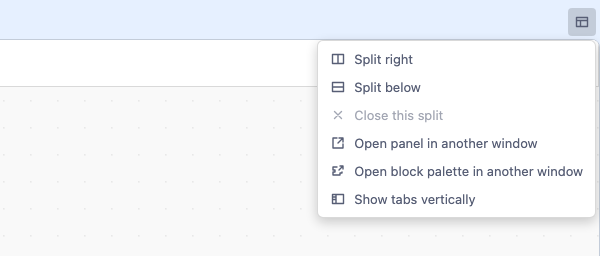
To move an open tab, drag it to the area where you want it and release it when the drop target changes color. A preview of the tab is shown while you drag. Dropping it on another tab row adds it to that row. Drag a divider to adjust sizes; "Close this split" closes a split panel and merges its tabs back.
Choose "Show tabs vertically" to stack the tab row down the left side of the panel. This helps when there are many tabs or when you want long sprite names to be easier to read. To return to normal, choose "Show tabs horizontally" in the same menu.
For example, you can put code on the left and the stage on the right (Move the stage into the workspace or a separate window). YAML documents opened by a supporting extension can also be placed as tabs.
To work in the classic editing layout without split panels (where documents in the project open in dialogs instead of tabs), save the project and reopen the editor with twPlusDockview=0 added to the URL. Split workspace as the default
5.3 Compare the same sprite's code in two panes
When you split the panel and show the same sprite's code in two panes, each pane its own scroll position and zoom level. You can read the setup code in one while editing the event code in the other. Block edits appear in both. To switch which pane you are editing, click that pane, or focus it and press Enter.
Shows the setup blocks
Block edits are shared
Shows the event blocks
Switching the code layout view and rearranging block positions are covered in Rearrange code and copy it to another sprite.
In development In the Desktop development build for macOS, opening the same sprite in a separate OS window that shares code edits, "Undo" and "Redo" is being tested. A prototype that lets an extension's own input fields work in a separate window is being tested for supported formats only. Code panes · Separate code windows in Desktop and what is tested
5.4 Open an editing panel in a separate window
Choose "Open panel in another window" from "Editor panel layout" to open that panel in a separate browser window. With two displays, you can put code editing and asset editing on different screens. A panel in a separate window returns to its original place with "Return this panel to the editor".
How to put only the block palette in a separate window is covered in Open the block palette in a separate window.
5.5 Move the sprite list to a separate window
In the Plus layout, the sprite list is pinned in the left drawer from startup. Press "Undock sprite list" at the top of the list to move it to a separate browser window; a "Return here" button remains in the original place. You can select, add and delete sprites in the separate window too. Choose "Return to the editor (dock)" from "Window layout" at the top right of the separate window, or press "Return here" in the original place, to put it back in the left drawer. The maximize and minimize items cannot be chosen in a browser.
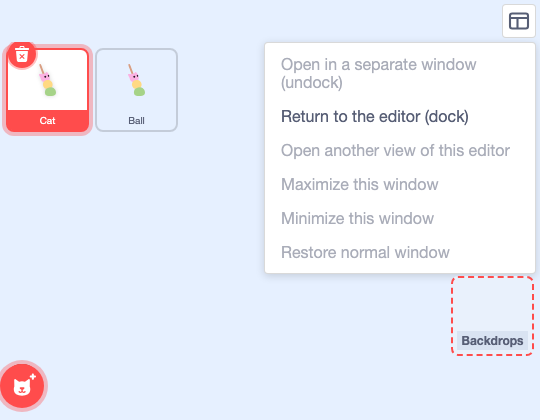
In development In the Desktop development build for macOS, moving the stage, sprite settings and the list to separate app windows and back has also been checked. Open the list directly in a separate window · Window layout menu · Status in Desktop
5.6 Restore the layout the next time you open a project
In the Plus layout, the order of tabs, how panes are split and sized, and which tabs were selected are recorded in the browser for each project. Which project a layout belongs to is decided by the project folder or SB3 file you opened (in the Desktop version, the file's location); if there is neither, the project name is used. When you reopen the project in the same browser, the layout is restored after it is matched against the loaded sprites and the documents in the project. If the record cannot be read or does not match the project's contents, the project opens in the default layout.
| What is saved | Where | What to do |
|---|---|---|
| Tab order, splits and selection | The editor's storage in the same browser profile (per project) | Open the same project in the same editor |
| Blocks, assets and confirmed documents in the project | The project's SB3 or project folder | Apply your edits and save from the File menu |
The browser keeps only the most recent layout for each project. Tabs for external YAML files opened directly in the Desktop development build are not restored. Restoring the layout after a restart · Restoring the layout per project