Feature guide 9/12 · Updated November 14, 2026
Reuse scripts and assets
Move scripts and the stage to another project with files or copy and paste, and use an extension's bundled assets as ordinary assets.
9.1 Transfer scripts and the stage to another project
TurboWarp Plus Editor does not have the Backpack found at the bottom of the Scratch editor. To reuse scripts, copy and paste them or export and import them as .blocks3 files. You can move the stage to another project as .stage3, and a whole sprite as .sprite3.
Right-click a block in the script you want to move and choose "Export Script" or "Copy". Both act on the whole connected group of blocks that contains the block you right-clicked. In the destination, right-click empty space in the code area and choose "Import Script" for a file or "Paste" for copied content. You can also copy and paste with the "Edit" menu or ⌘C / ⌘V (Ctrl+C / Ctrl+V on Windows).
If you only need to move a script to another sprite in the same project, you can also put two code tabs side by side and drag the blocks into the other code area to copy them (Rearrange code and copy it to another sprite).
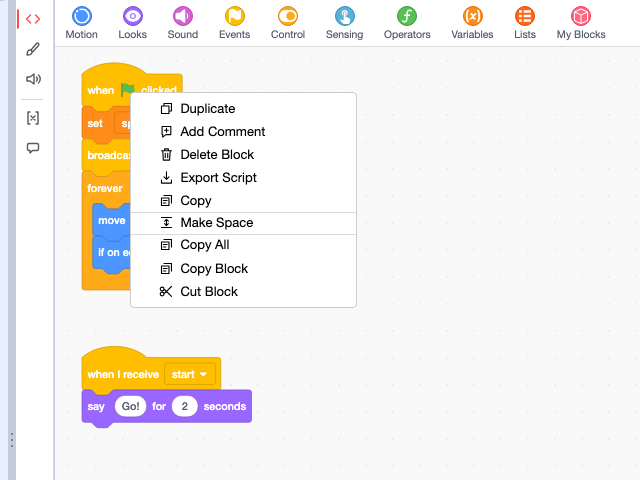
- .blocks3 contains the script along with the custom blocks, variables, lists, messages, and extensions it uses.
- Between editor windows opened from the same site (the same origin), you can copy and paste without granting access to the OS clipboard. To paste into an editor opened from a different site, you need a supported browser and permission to read the clipboard.
- .stage3: In the Plus layout, right-click the backdrop tile and choose "Export Stage"; in the Scratch layout, right-click the stage to export it. Import it in the Scratch layout by choosing "Import Stage (add)" from the backdrop's "Choose a Backdrop" menu. The context menu of the backdrop tile in the Plus layout has no import item. The backdrops, sounds, and scripts are added to the current stage.
- If the destination has a variable or list with the same name, scope, and type, the destination's item and its value are used. Custom blocks and assets whose names collide are renamed as needed. Backdrop and sound names given to a block argument through an operator or a variable are not rewritten to match the destination.
- Whether an extension can run depends on the destination's settings and approvals.
9.2 Add bundled assets as backdrops, costumes and sounds
Use this to reuse images or sounds from a bundle, such as those used by Kamishibai, in sprites or the stage. The original assets in the bundle stay as they are, and the ones you choose are added to the project as backdrops, costumes, or sounds.
Open "File" → "Project Data…" and press "Add Bundle Material to Project…" at the top. In the dialog that opens, choose the "Bundle material", "Add as", and "Target", then press "Add to project". Save the project to keep what you added. In projects with no bundled assets that can be added, "There are no supported images or sounds." is shown.
| Asset | Add as | Target |
|---|---|---|
| Image (SVG, PNG, JPEG) | Costume | The chosen sprite |
| Image (SVG, PNG, JPEG) | Backdrop | The stage |
| Audio (WAV, MP3, Ogg) | Sound | The chosen sprite or the stage |